| |
STEP 1
|
Open X-Lite application |
STEP 2
|
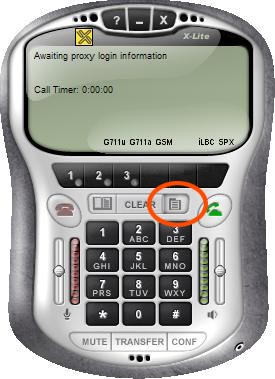
Click on the MENU button located to the right of the CLEAR button:
|
STEP 3
|
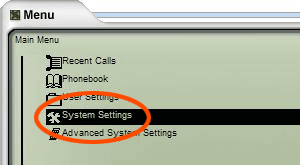
Double click the System Settings menu item.
|
STEP 4
|
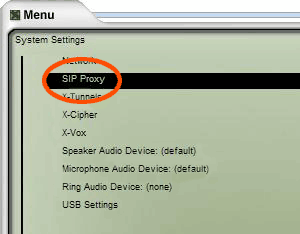
Double click the SIP Proxy menu item.
|
STEP 5
|
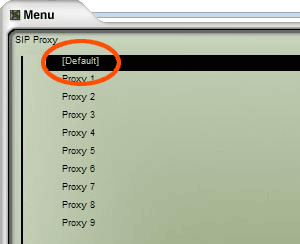
Double click the [Default] menu item
|
STEP 6
|
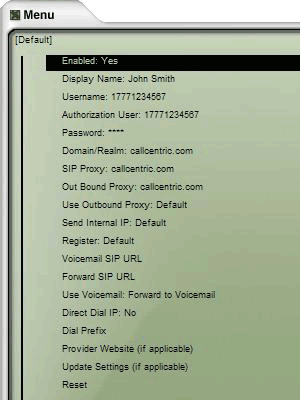
Within the menu shown in the screen shot below configure the settings as listed below:
| Menu Item | Setting |
| Enabled: | Select "YES" |
| Display Name: | Enter your name in this field |
| Username: | This is either the default extension 1777MYCCID OR 1777MYCCIDEXT, where 1777MYCCID is the 1777 number assigned to you by Callcentric and EXT is the three digit extension you are trying to register this UA to.
For example: 17770001234101 would register to extension 101 on account 17770001234.
You cannot register to your account using only the extension number. |
| Authentication User: | This is either the default extension 1777MYCCID OR 1777MYCCIDEXT, where 1777MYCCID is the 1777 number assigned to you by Callcentric and EXT is the three digit extension you are trying to register this UA to.
For example: 17770001234101 would register to extension 101 on account 17770001234.
You cannot register to your account using only the extension number. |
| Password: | Enter your extension SIP Password here. Your extension SIP password is the password you created for the extension you are trying to use. You may edit the SIP password you wish to use in by logging into your My Callcentric account and clicking on the Extension menu link and then modifying the appropriate extension. |
| Domain/Realm: | Enter "sip.callcentric.net" in this field |
| SIP Proxy: | Enter "sip.callcentric.net" in this field |
| Out Bound Proxy: | Enter "sip.callcentric.net" in this field |
| Use Outbound Proxy: | Select "Default" |
| Send Internal IP: | Select "Default" |
| Register: | Select "Default" |
| Voicemail SIP URL: | Leave this field BLANK |
| Forward SIP URL: | Leave this field BLANK |
| Use Voicemail: | Select "Forward to Voicemail" |
| Direct Dial IP: | Select "No" |
| Dial Prefix: | Leave this field BLANK |
| Provider Website (if applicable): | Leave this field BLANK |
| Update Settings (if applicable): | Leave this field BLANK |
DO NOT click the word RESET in the menu.
|
STEP 7
|
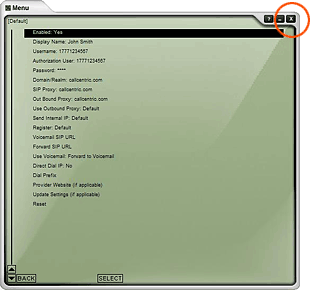
After filling in the information as shown above, click the close window button
in the upper right hand corner of the window.
|
STEP 8
|
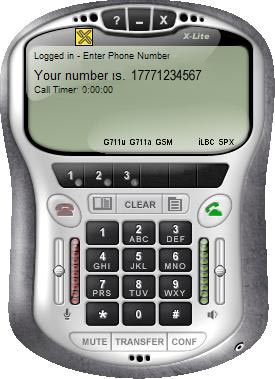
On the main screen you should now see you are logged in. If the screen does not
show you are logged in, please verify that your internet connection is working on the computer, and
re-verify the settings in step 6.
|
STEP 9
|
That's it! You can now make a phone call.
You can make a test call to 17771234567, or if you are signed up for one of Callcentric's rate
plans you can place a call to a traditional landline or mobile phone by dialing either:
1 + the area code and number for calls to the US
Or
011 + the country code, area code, and number for calls worldwide
(you may also use 00 instead of 011).
|