| |
STEP 1
|
Decide whether you plan to use the HandyTone 486 as a router or behind your
existing broadband router.
If you will be using the HandyTone as a router connect your broadband connection (such as cable modem
or DSL modem) to the WAN port on the HandyTone. Connect your computer or Ethernet hub to the LAN port
on the HandyTone. For more detailed instructions please refer to the HandyTone manual.
If you will be using the HandyTone behind your existing broadband router connect the WAN port on the
HandyTone to your router or LAN. For more detailed instructions please refer to the HandyTone manual.
After connecting the network cables, connect your phone to the HandyTone. Finally plug the supplied
power cable into the HandyTone.
|
STEP 2
|
Wait 60 seconds after plugging your HandyTone in. |
STEP 3
|
Pick up the phone connected to the HandyTone and dial the *
key on your phone 3 times. |
STEP 4
|
Have a pen and paper ready. You will hear a message - "Enter a
menu option", then enter 0 2 on your phone. You will now hear a message
giving you the IP address of your HandyTone such as - "192.168.001.010" write this
number down. |
STEP 5
|
Open a web browser on your computer such as Internet Explorer and enter the IP
address you heard in step 4 as the address (I.E. where you would normally enter www.yahoo.com).
Please note: some browsers will require you to remove leading zero's ( 0 's ) in the IP address.
For example if you heard "192.168.001.010" you should change this to "192.168.1.10". |
STEP 6
|
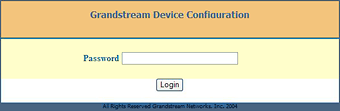
You should now see a page that looks like this:
|
STEP 7
|
Enter the password for the HandyTone in the password field. The default administrator
password for the HandyTone is "admin" (without quotes). |
STEP 8
|
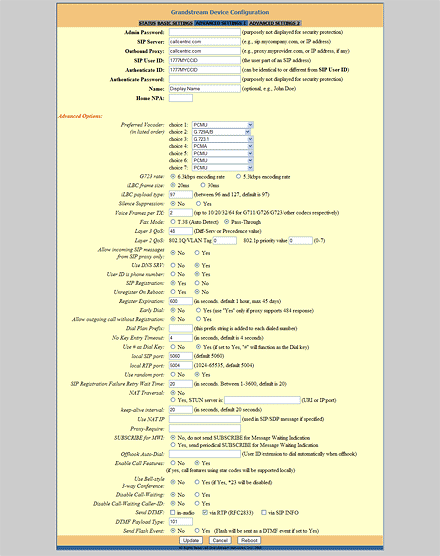
After entering the password you should see a screen that looks roughly like this:
|
STEP 9
|
Now fill all the fields on the form as shown in
this picture.
Note that in the first section at the top you will need to fill the following fields as indicated:
| Menu Item | Setting |
| Admin Password: | Leave this field blank to keep current password. |
| SIP Server: | Enter sip.callcentric.net in this field. |
| Outbound Proxy: | Enter sip.callcentric.net in this field. |
| SIP User ID: | This is either the default extension 1777MYCCID OR 1777MYCCIDEXT, where 1777MYCCID is the 1777 number assigned to you by Callcentric and EXT is the three digit extension you are trying to register this UA to.
For example: 17770001234101 would register to extension 101 on account 17770001234.
You cannot register to your account using only the extension number. |
| Authenticate ID: | This is either the default extension 1777MYCCID OR 1777MYCCIDEXT, where 1777MYCCID is the 1777 number assigned to you by Callcentric and EXT is the three digit extension you are trying to register this UA to.
For example: 17770001234101 would register to extension 101 on account 17770001234.
You cannot register to your account using only the extension number. |
| Authenticate Password: | Enter your extension SIP Password here. Your extension SIP password is the password you created for the extension you are trying to use. You may edit the SIP password you wish to use in by logging into your My Callcentric account and clicking on the Extension menu link and then modifying the appropriate extension. |
| Name: | Enter your name in this field |
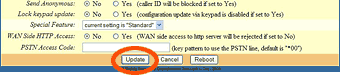
Note that at the bottom of the page you will need to fill the following fields as indicated: |
| FXS Impedance: | Select your closest country. Typically 600 Ohm (North America) will work. |
| Caller ID Scheme: | Select your closest country. Typically Bellcore (North America) will work. |
| Onhook Voltage: | Typically 24V will work. |
| WAN Side HTTP Access: | Typically for security reasons you should choose NO for this setting to prevent someone from changing your configuration |
| PSTN Access Code: | The default is *00 you may wish to change this. |
Click here to see detailed screenshot of configuration
|
STEP 10
|
After filling in the fields as directed click the Update
button at the bottom of the page.
|
STEP 11
|
You will now be taken to a page that looks like the picture below.
Click "BASIC SETTINGS" link listed at the top of the page.

|
STEP 12
|
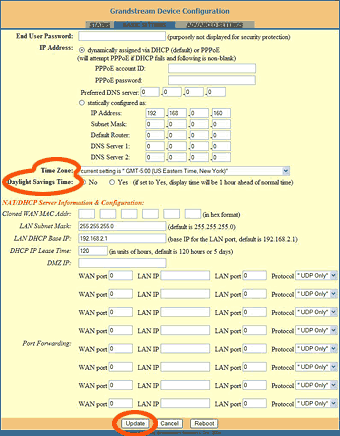
You should now see a page that looks like the picture below.
Set the Time Zone and Daylight Savings Time to
reflect your time zone. After you are done, click the Update button at the bottom of the page.
|
STEP 13
|
You will now be taken to a page that looks like the picture below.
Click "BASIC SETTINGS" link listed at the top of the page.
|
STEP 14
|
On the Basic Settings page click the "Reboot" button
Click to see screenshot
|
STEP 15
|
Your HandyTone will reboot after you click the reboot button. Please wait at
least 90 seconds for the unit to finish rebooting. Once the unit has finished rebooting you should no
longer see the light on top of the HandyTone blinking red. If the light is no longer blinking red then
your unit is configured and ready to make calls, please continue to the next step.
If the light on the top of the HandyTone is still blinking red, please wait 2 minutes and then unplug
the power, wait 10 seconds and plug it back in. If after another 2 minutes the light continues to blink
red please verify that the settings you entered into the HandyTone in step 9 through 12 are correct, and
that your internet connection is currently up and running. |
STEP 16
|
That's it! You can now make a phone call.
You can make a test call to 17771234567, or if you are signed up for one of Callcentric's rate plans you
can place a call to a traditional landline or mobile phone by dialing either:
1 + the area code and number for calls to the US
Or
011 + the country code, area code, and number for calls worldwide
(you may also use 00 instead of 011). |