| |
STEP 1
|
Open the eyeBeam application.
|
STEP 2
|
If you have had eyeBeam installed for a while please skip to 2B below. |
STEP 2A
|
If you have just installed eyeBeam you will see a screen appear like the one below:
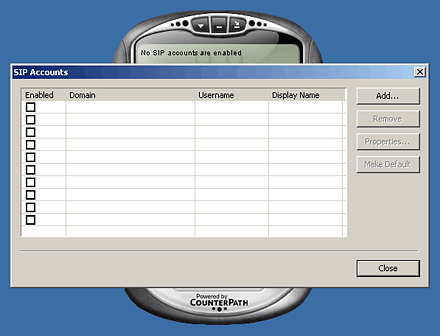
If you see this window skip to STEP 3, if not, see 2B below.
|
STEP 2B
|
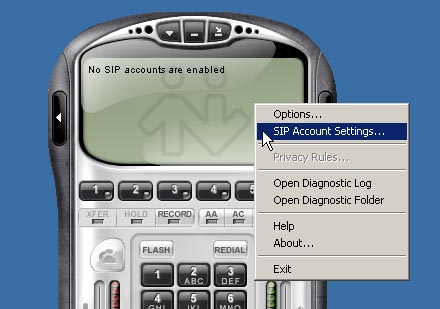
If you have had eyeBeam installed for a while please RIGHT-CLICK in the
main window and select SIP Account Settings... from the drop-down menu.
|
STEP 3
|
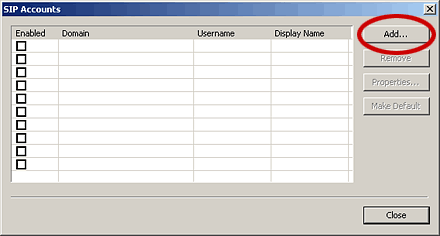
Click the Add... button in the SIP Accounts window.
|
STEP 4
|
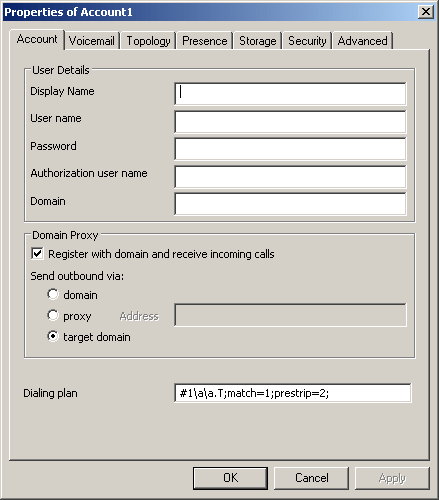
You will now see a window with tabs across the top, and fields to be filled. Follow the directions below
for how to fill the fields within each tab.
|
STEP 5
|
Within the Account tab fill in the fields as explained below:
| Field | Setting |
| Display Name: | Enter your name in this field |
| Username: | This is either the default extension 1777MYCCID OR 1777MYCCIDEXT, where 1777MYCCID is the 1777 number assigned to you by Callcentric and EXT is the three digit extension you are trying to register this UA to.
For example: 17770001234101 would register to extension 101 on account 17770001234.
You cannot register to your account using only the extension number. |
| Password: | Enter your extension SIP Password here. Your extension SIP password is the password you created for the extension you are trying to use. You may edit the SIP password you wish to use in by logging into your My Callcentric account and clicking on the Extension menu link and then modifying the appropriate extension. |
| Authorization user name: | This is either the default extension 1777MYCCID OR 1777MYCCIDEXT, where 1777MYCCID is the 1777 number assigned to you by Callcentric and EXT is the three digit extension you are trying to register this UA to.
For example: 17770001234101 would register to extension 101 on account 17770001234.
You cannot register to your account using only the extension number. |
| Domain: | Enter sip.callcentric.net in this field |
In addition the Register with domain and receive incoming calls option should be CHECKED; and the target domain radio button selected.
The dialing plan should be left as its default which is: #1\a\a.T;match=1;prestrip=2;
Below is an example:
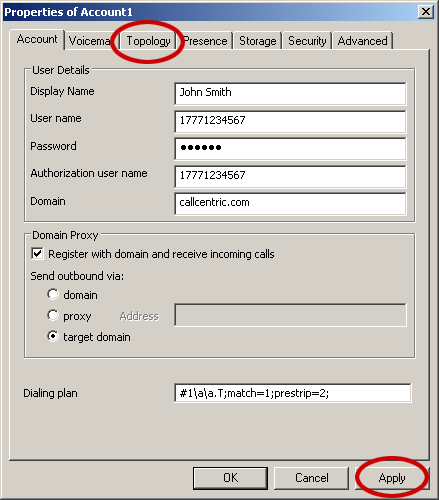
Once done please click the Apply button; then click on the Topology tab.
|
STEP 6
|
Within the Topology tab make sure that the settings are configured as shown in the picture below:

Once setup as above, click the Apply button (if you made any changes), and then click
the Advanced tab.
|
STEP 7
|
Within the Advanced tab make sure that the settings are configured as shown in the picture below:
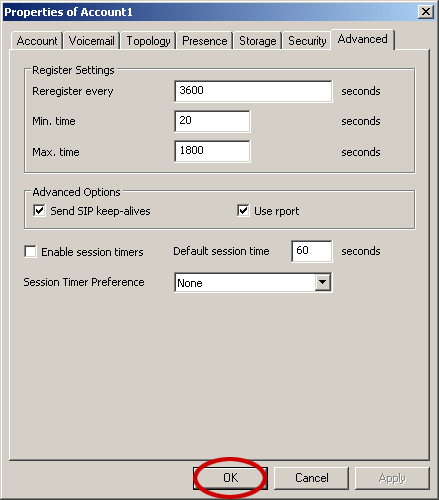
Once setup as above, click the Apply button (if you made any changes), and then click
the OK button.
|
STEP 8
|
You will now be back at the SIP accounts screen. Click the Close button as shown in
the picture below:

|
STEP 9
|
The eyeBeam software will now attempt to register (login) to our servers. You should see this happen in a
few seconds and if successful you will see a screen like this:
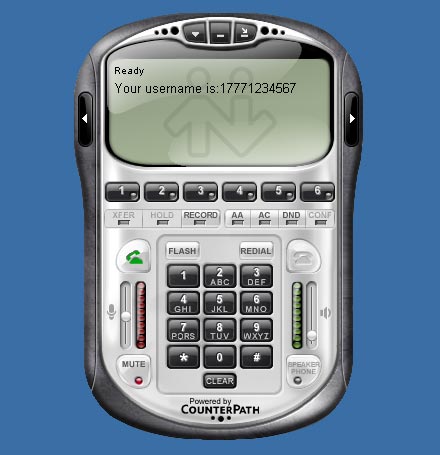
If you receive an error message, please verify that your internet connection is working on the computer, and re-verify
the settings.
|
STEP 10
|
That's it! You can now make a phone call.
You can make a test call to 17771234567, or if you are signed up for one of Callcentric's rate plans you
can place a call to a traditional landline or mobile phone by dialing either:
1 + the area code and number for calls to the US
Or
011 + the country code, area code, and number for calls worldwide
(you may also use 00 instead of 011).
|